
Your dog deserves celebrity treatment.
The way they pose for photos, the way strangers stop to admire them on walks, and the fact that your camera roll is filled with hundreds of their pictures — it’s clear they’re the real stars of your life.
Recently, a fun trend started circulating online where people transform their photos into chaotic paparazzi-style celebrity moments using AI.
It got me thinking… this trend would be perfect for dog photos too — especially for my golden retrievers.
Just imagine your dog sitting calmly while reporters push microphones toward them, camera flashes go off, and photographers scramble to capture the moment — just like a Hollywood celebrity on the red carpet.
The best part? You can create this fun image in seconds using ChatGPT and your dog’s photo.
In this post, I’ll share the step-by-step process and prompts you can use to turn your dog’s photo into a paparazzi-style shot using ChatGPT.

Why Create a Paparazzi-Style Photo of Your Dog?
This trend lets you reimagine a regular photo of your dog in a completely different way.
When you add flashing cameras, reporters, and dramatic lighting, it instantly turns your dog into the center of a chaotic Hollywood-style celebrity moment.
It’s a fun and creative way to make your dog look like the star they already are.
Two Ways You Can Create This Paparazzi Image Using ChatGPT
There are two simple ways to create a paparazzi-style image using ChatGPT.
You can either:
1. Use ChatGPT’s preset prompt
2. Write your own custom prompt
Both methods work great.
Method 1: Use ChatGPT’s Preset Prompt
The easiest method is to upload your dog’s photo and use the prompt generated by ChatGPT.
When I selected the Images style from the right-hand column inside ChatGPT, this is the prompt it generated:
“Transform the subject into a high-fashion press scrum photograph, surrounded tightly by cameras, microphones, and boom mics from all directions. Preserve the subject’s face, features, and overall identity clearly recognizable. The subject is centered in the frame, partially obscured by overlapping microphones and camera lenses pointing inward, creating a sense of pressure and attention. Expression is calm, controlled, and unreadable — confident but distant. Styling is minimal and fashion-forward: dark clothing, sharp silhouette, sunglasses or statement eyewear optional. The image is shot like a real editorial photograph — direct flash, harsh highlights, deep shadows, and realistic textures on equipment. Colors are cool and neutral, dominated by black, gray, and metallic tones. The composition feels chaotic but balanced, with the subject remaining the focal point amid the noise.”
The image below is what it generated.

Method 2: Use Your Own Custom Prompt
You can also type something simple like:
“Make my dog’s photo look like a paparazzi shot.”
However, if you want more control over the final result, writing your own custom prompt works best.
Custom prompts let you describe details such as:
– microphones
– news reporters
– flashing cameras
– red carpet lighting
– dramatic shadows
– chaotic paparazzi energy
The more descriptive your prompt is, the more cinematic your final image can look.
Example Custom Prompt I Used
Here’s an example of a custom prompt you can try:
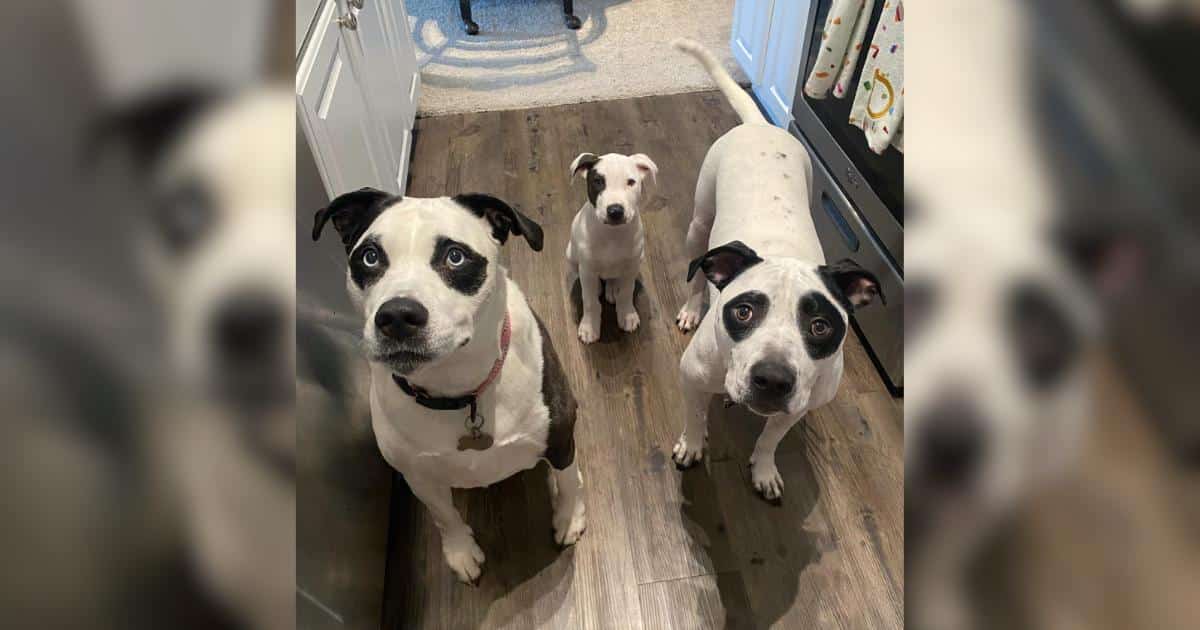
“Transform the uploaded photo of my dogs into a chaotic paparazzi media moment. My dogs are sitting calmly in the center while reporters push microphones labeled ‘LIVE’, ‘NEWS’, and ‘TV’ toward them. Camera flashes fire rapidly, and photographers crowd around with cameras. Boom microphones hang overhead. The dogs look calm and confident while the surrounding media frenzy is chaotic. Cinematic editorial photography with harsh flash lighting, dramatic shadows, and realistic camera equipment. Vertical 9:16 format.”
If you only have one dog, simply change “dogs” to “dog.”
You can also customize the microphone labels to something fun like:
– “Bark TV”
– “Bark News”
You can also change the image ratio depending on where you plan to share it:
– 9:16: great for Instagram Reels or YouTube Shorts
– 16:9: great for YouTube
– 4: ideal for Instagram posts
Step-by-Step: How to Create This Image Using ChatGPT
Here’s the simple process dog parents can follow.
Step 1: Choose a Good Photo of Your Dog
Pick a clear photo where your dog is:
– sitting
– facing forward
– well lit
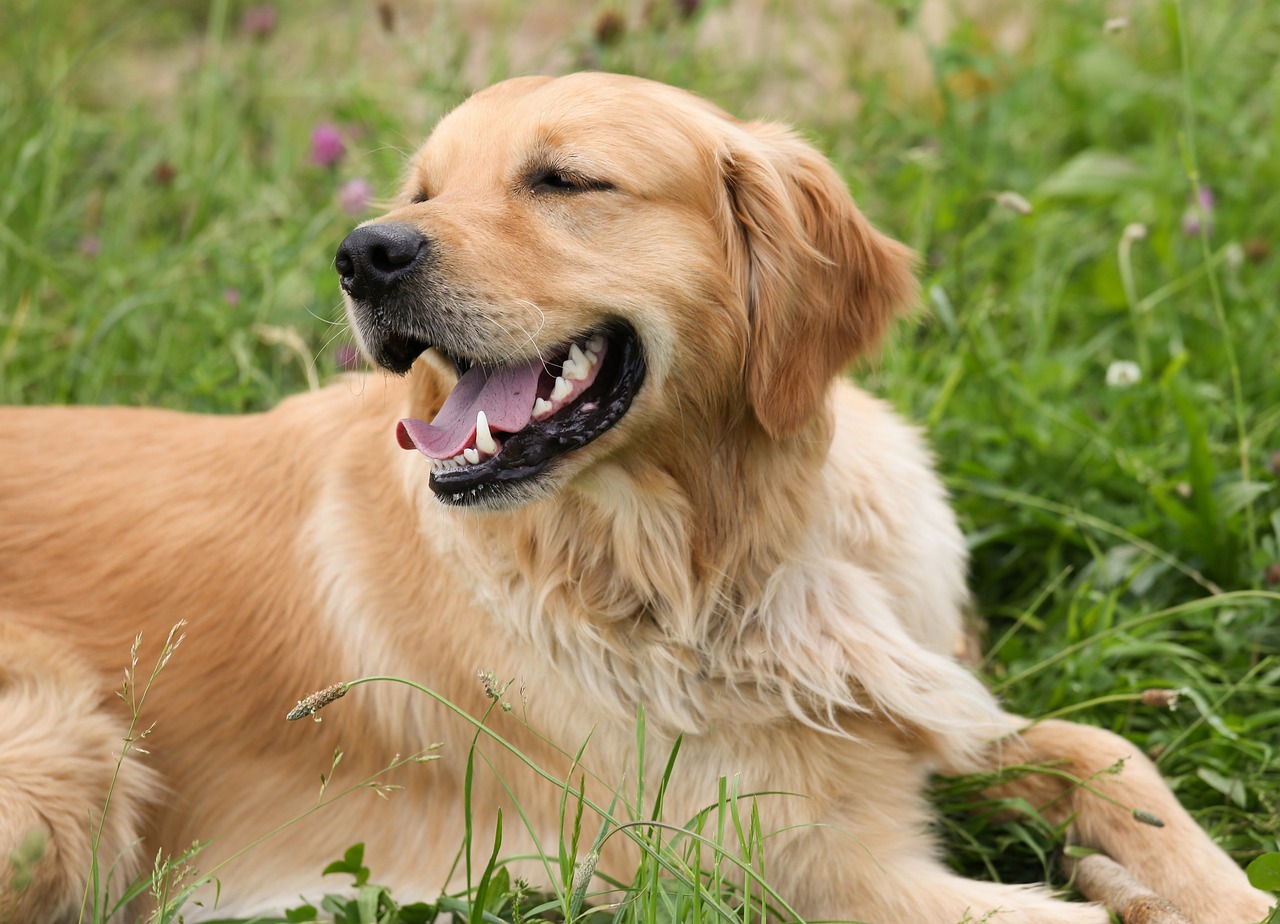
– easy to see
Photos where your dog looks calm or slightly amused tend to work best.
Step 2: Upload the Photo Into ChatGPT
Open ChatGPT and upload the image directly into the chat.
Once the image uploads, ChatGPT can use it as the base photo for the transformation.
Step 3: Enter Your Prompt
Use either:
– ChatGPT’s preset prompt
OR
– our own custom prompt.
Step 4: Let ChatGPT Generate the Image
ChatGPT will create a new image that transforms the scene into a celebrity-style paparazzi moment.
You’ll usually see things like:
– photographers crowding the frame
– bright camera flashes
– reporters pushing microphones forward
– cinematic lighting
Your dog will remain the center of attention.
Step 5: Download Your Dog’s Paparazzi Photo
Once the image is generated, you can download it and share it on social media.

Reimagine Your Dog’s Photo Into a Paparazzi Moment
Using AI tools like ChatGPT makes it possible to turn a simple photo into something playful, creative, and completely unexpected.
So grab one of your favorite photos, upload it into ChatGPT, and see what happens when your dog gets their very own paparazzi moment.
Your dog might just be ready for the spotlight.
More AI Ideas for Dog Lovers
If you enjoyed creating this paparazzi shot, explore our AI for Dog Lovers page for more prompts and ideas to turn your dog’s photos into fun AI image.


 English (US) ·